
Put both files in Files
Make sure the video and the SRT are available in the Files app on your iPhone. If they came in a ZIP, tap it in Files to extract it first. Changing a text file’s extension alone does not make it a valid SRT.
Import the video and its subtitles
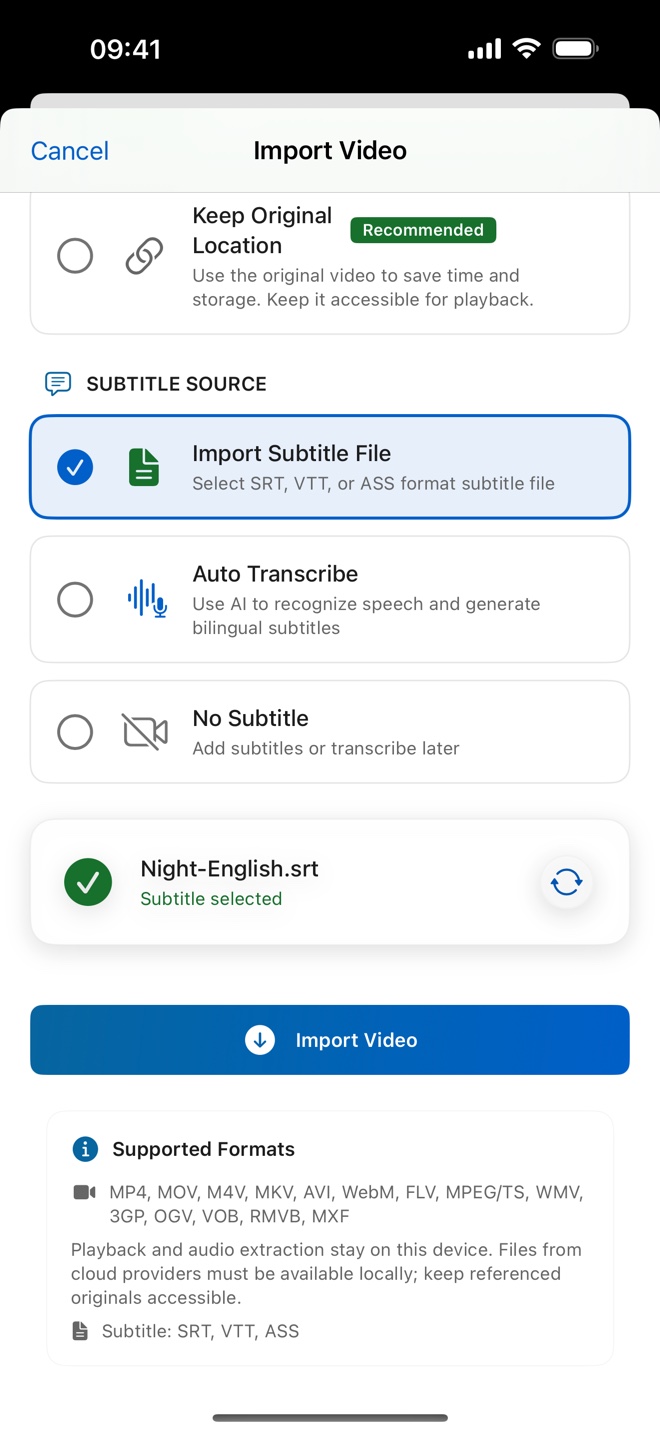
Open the Videos tab in Duoler, tap + at the top right, then Select Video. Choose your video. The demonstration uses Copy to App, which keeps a separate copy and takes additional storage. Scroll to Select Subtitle File, choose the matching SRT, and tap Import Video.
Check one line before you practise
Open the imported video and play a line. Compare the words with the audio. If they don’t belong together, check that the subtitles are for the same edit: a different cut or release can change the timing.
Start with a short learning section
Tap Study video (or Continue learning if you have already started), choose a section, and open Study. Play a sentence, then use the loop and subtitle controls to repeat it with or without the words.
If something doesn’t line up
No subtitles?
Check that you selected the SRT as well as the video during import. Importing the video alone does not add a prepared transcript.
A file is greyed out?
Unzip it in Files first. Choose the video in the video picker and the SRT in the subtitle picker.
The timing looks wrong?
Use subtitles made for that exact video edit. This walkthrough does not promise automatic repair of mismatched subtitles.